The hyperlink icon in the editor toolbox feature provides the user with a variety of options to help guide an attendee to a new location or page. To use this feature, simply highlight the text you want to turn into a hyper link and click on the link icon. A window pops up giving you a few different options to choose. Before you make your choice, delete the preloaded information in the drop-down field which is the text you've highlighted in the body of the message. If you have an existing URL, paste the URL directly into the field and hit save. This will activate the link and allow the attendee to click on the text directing them to the URL. You know the text is linked when you see the text is underlined after saving your change.
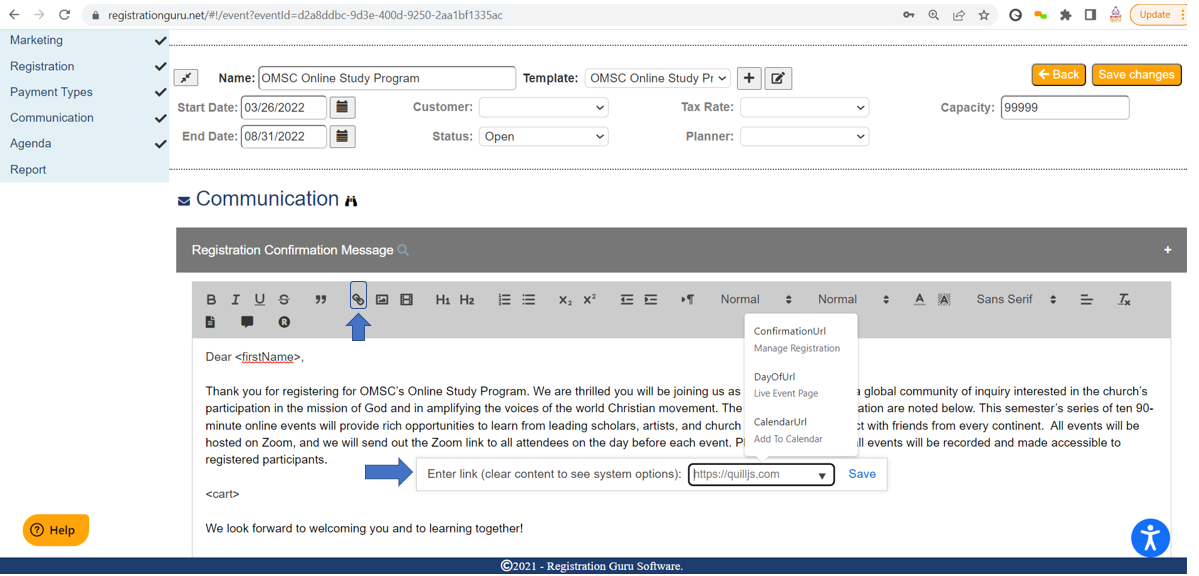
When you delete the preloaded text, you can also click on the drop-down field where you can select from 3 options including Confirmation URL, DayOf URL, and Calendar URL. Please review what each preset link offers:
1. The Confirmation URL will direct the attendee directly to their registration account avoiding entering in an email or unique code.
2. The DayOf URL will direct the attendee to the URL where any sessions they signed up to attend will appear along with the Zoom option if connected to your Zoom account and the option to "check-in" to the event. Note: This option is only applicable when you have set up an agenda and have sessions added to the event. Also, the Zoom camera icon will only appear on the Day Of page if you have activated the Zoom icon for the session by clicking on the camera icon turning the icon blue on the agenda screen.
3. The Calendar URL gives the attendee the ability to save the event to their personal calendar.
The screen shot below shows you where you can find the hyperlink icon and the options that appear after you click on the drop-down field. This hyperlink icon appears in various locations including communication and marketing screens. Like pasting in the URL, choosing any of the three preloaded options will create a hyperlink in the text you've highlighted and will appear with an underline.
Was this article helpful?
That’s Great!
Thank you for your feedback
Sorry! We couldn't be helpful
Thank you for your feedback
Feedback sent
We appreciate your effort and will try to fix the article